Login problems at an online casino can disrupt access to balances, ongoing games, and account settings, so it helps to understand exactly what steps are necessary to regain entry. At Pokobet Casino, the login process uses a registered email address and password combination, and most access issues are caused by either an incorrect password, a locked account, or a browser-related error. Knowing the correct recovery sequence and the security checks that accompany each attempt can reduce downtime from several hours to a few minutes. This article details the precise actions to take when a login fails and clarifies how the platform’s verification system works with the login process.
Confirming Eligibility Prior to Trying to Log In
Before entering credentials, verify that the account holder meets the platform’s age and residency criteria. Pokobet Casino limits access to users who are at least eighteen years old and situated in jurisdictions where online gambling is authorized. If an account was established with an email address associated with a restricted region, the login attempt will be prevented even when the password is correct. Examining the original registration confirmation email displays the country code recorded at sign-up, permitting the user to verify that no geographic mismatch exists before moving forward with password recovery.
Another eligibility factor involves account state. Accounts that have stayed inactive for an extended period may be tagged for review, which blocks login until identity documents are provided anew. The platform dispatches an automated notice to the registered email when such a flag is set. Going through this notice offers the exact list of documents required and the deadline for submission, preventing repeated failed login attempts that could further delay reactivation.
Understanding the Regular Login Procedure
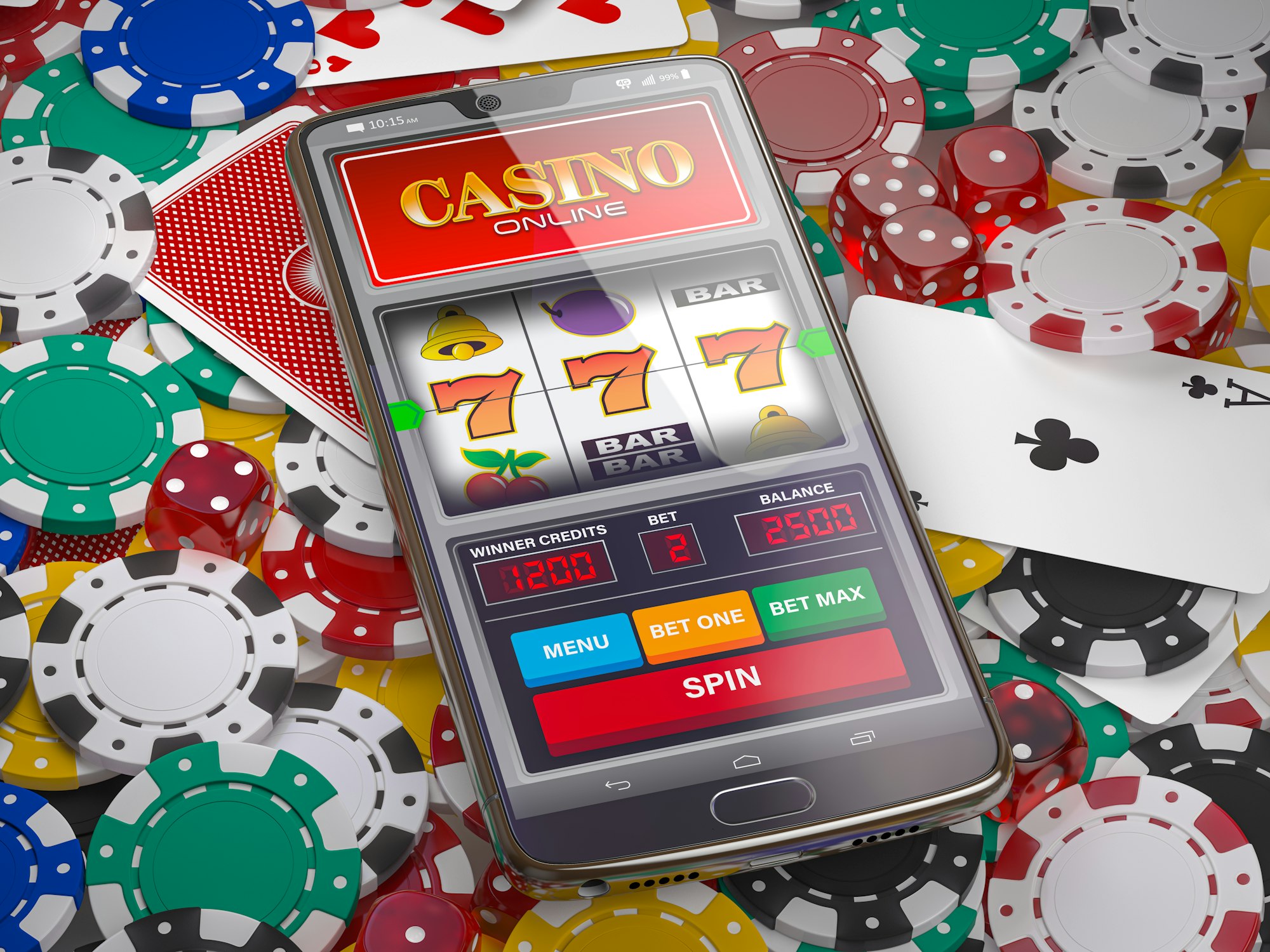
The login page at Pokobet Casino displays two sections: one for the associated email address and one for the password. After the credentials are provided, the system verifies them against stored values and, if correct, initiates a device recognition routine. On a new device or browser, an extra one-time code is transmitted to the email address on file. Entering this code completes the login. Keeping the confirmation email open before starting the process enables the code to be transferred quickly and reduces the chance of session timeout.
Users who have enabled two-factor authentication obtain a second code via authenticator app rather than email. The app code must be input within thirty seconds of generation, after which a new code is generated. If the code window is missed, refreshing the app produces the next valid code without needing a new login attempt. Recording backup codes during the initial two-factor setup supplies an alternative entry method if the primary device is not accessible.
Recovering a Misplaced Password
When the password field returns an error, the first corrective step is to use the “Forgot Password” link found beneath the login form. Clicking this link opens a new page that asks for the registered email address. After submission, the system transmits a password-reset message including a unique link valid for twenty-four hours. Opening the link on the same browser used for the request retains session data and blocks additional security prompts that can appear when switching devices mid-process.
The reset page needs a new password that meets the platform’s complexity rules: at least eight characters, one uppercase letter, one number, and one special character. Re-entering the password in the confirmation field triggers the change immediately, after which the user is redirected to the login page with the new credentials pre-filled. Attempting to reuse an old password generates an error message, so a distinct string must be created. Storing the new password in a secure manager eliminates future resets caused by forgotten credentials.
Handling Account Lockouts After Multiple Failed Attempts
After five consecutive incorrect password entries, the platform temporarily locks the account for thirty minutes. Throughout this period, further login attempts are rejected even with the correct password. The lockout timer is displayed on the login screen once triggered, letting the user to wait without repeated clicks that could extend the restriction. In case of urgent access, contacting live chat support with the registered email address can sometimes shorten the wait, although support staff still observe the thirty-minute minimum for security reasons.
Multiple lockouts within a short timeframe can escalate to a longer suspension pending manual review. In these situations, an email notification explains the extended hold and lists the documents needed for verification. Providing the requested identification through the account recovery portal restarts the review clock, which usually concludes within one business day. Having scanned copies of a government-issued photo ID and a recent utility bill ready speeds up this secondary verification stage.
Completing Identity Verification to Regain Full Access
Pokobet Casino implements identity verification at the time of registration and at future withdrawal requests. The process begins with uploading a legible photograph of a passport, national identity card, or driver’s licence. The document must show the holder’s full name, date of birth, and photograph, matching the details entered during sign-up. A second document, such as a bank statement or utility bill dated within the last three months, confirms the residential address on file. Files should be in colour, under five megabytes each, and saved as JPEG or PDF to avoid upload errors.
Once documents are submitted, pokobetcasino sign in page, the verification team usually responds within four to twenty-four hours. During this period, login remains possible for viewing account balances and playing most games, but withdrawal functions are disabled. Checking the verification status in the account dashboard reveals whether additional information is required or whether approval has been granted. If a submission is rejected, the rejection notice outlines the exact discrepancy, such as an unclear image or mismatched address, allowing immediate correction and resubmission without starting the entire process again.
Addressing Browser and Device-Related Login Errors
Certain login failures stem from cached data or outdated browser settings instead of account issues. Deleting the browser cache and cookies removes stored login tokens that may conflict with the current session. After clearing, reloading the login page forces the browser to request fresh security tokens from the server. Using an incognito window provides a quick test environment that deactivates extensions that might disrupt form submission or redirect scripts.
Device date and time settings also impact token validation. Should a system’s time be off by more than a few minutes, the security certificate check falters and produces a generic error page. Correcting the operating system time to automatic network synchronisation resolves this without further account action. With handheld devices, toggling airplane mode for ten seconds resets network authentication and might remove intermittent connection errors that resemble password failures.
Enabling Two-Factor Authentication for Upcoming Logins
After regaining access, activating two-factor authentication provides a coingecko.com second verification layer that stops unauthorised entry even if the password is exposed. Within the account security menu, picking “Enable 2FA” shows a QR code that is captured with an authenticator app such as Google Authenticator or Authy. Once linked, the app generates a six-digit code every thirty seconds that must be typed after the standard password during each login. The setup process also produces ten single-use backup codes that should be written down offline in case the primary device is lost.
Two-factor authentication can be controlled from the same security menu if a new phone is obtained. Revoking the old device needs both the current password and a valid authenticator code, after which a new QR code is generated for the replacement device. Holding at least two backup codes in a secure location guarantees continued access during device transitions without needing immediate support intervention. Regular checking of active sessions listed in the security log allows users to log out unrecognised devices promptly, preserving account integrity over time.